Notifications
Clear all
Player Creations
2
Posts
1
Users
0
Reactions
7
Views

Topic starter
Introducing SaphTemplates!
SaphTemplates is meant to be an easy introduction & use for our players getting into Figura. For the most simple use of these templates, there is no need to open your character model in Blockbench, no need to open any script files or make any complex changes. All you need to do is drag in the template/s you plan to use into your Figura>Avatars folder, rename the primary folder (Example: Elf Template renamed to Eadbhard Base) and then you’re good to go!
Spaz will be gradually updating the templates as time goes on with improved functionality, ease of use and of course new models(Specifically for Avalti and Ca’liar to include standard parts, wings, tails, legs etc.) For now, the 1.0 release should work as a baseline for people to have the basics.
You can find the downloads for the full list of templates in the link of this post.
SaphTemplates 1.0 Features
- Release version, has Steve & Alex models with ‘base’ templates for Default, Dwarf, Elf, and Orc. (You don’t have to use these, an Orc can still use the Default template, or a goblin could use the Elf one). These get the general shape, but height will still need to be set.
- Typing
!setheight #within your chat window sets the height of your currently selected profile in meters. An example is typing!setheight 1.8will set the character height to 1.8 meters (The default for vanilla Steve height). [Click here] for a converter between feet to meeters. - Additional parts (female chests, backswords, scabbards, backpacks, etc) are able to be implemented, but this full library is a work in progress. Any that are released from this point will work with the 1.0 version of any SaphTemplate models. They simply need dragged and dropped into the appropriate folder and will sit and scale accordingly.
This topic was modified 11 hours ago 5 times by Saphriel Staff
Posted : 13/11/2026 7:48 am
Topic starter
How to Add Models/Avatars to Figura
You can find the Figura menu in your pause menu by pressing the Esc key. 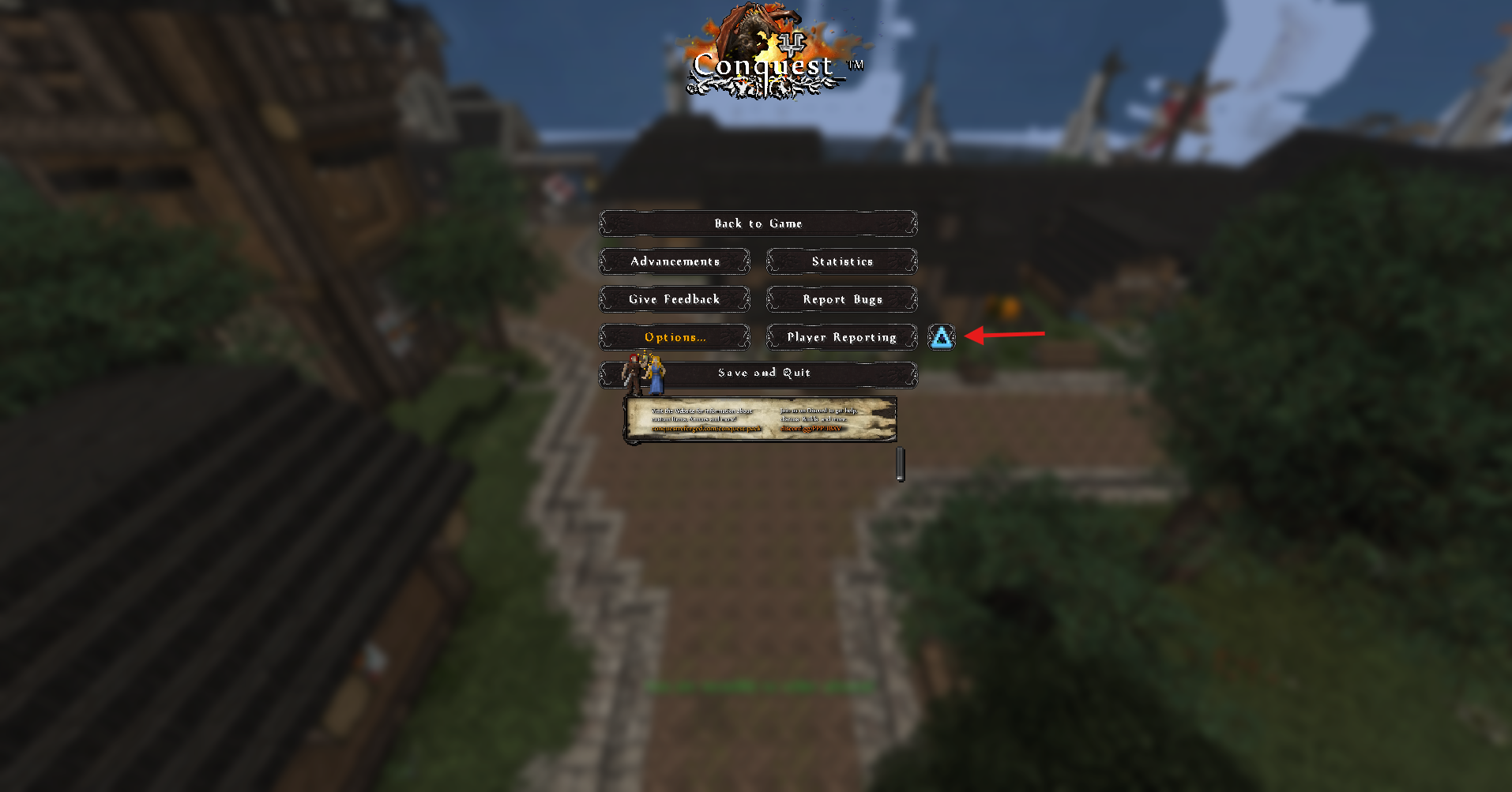
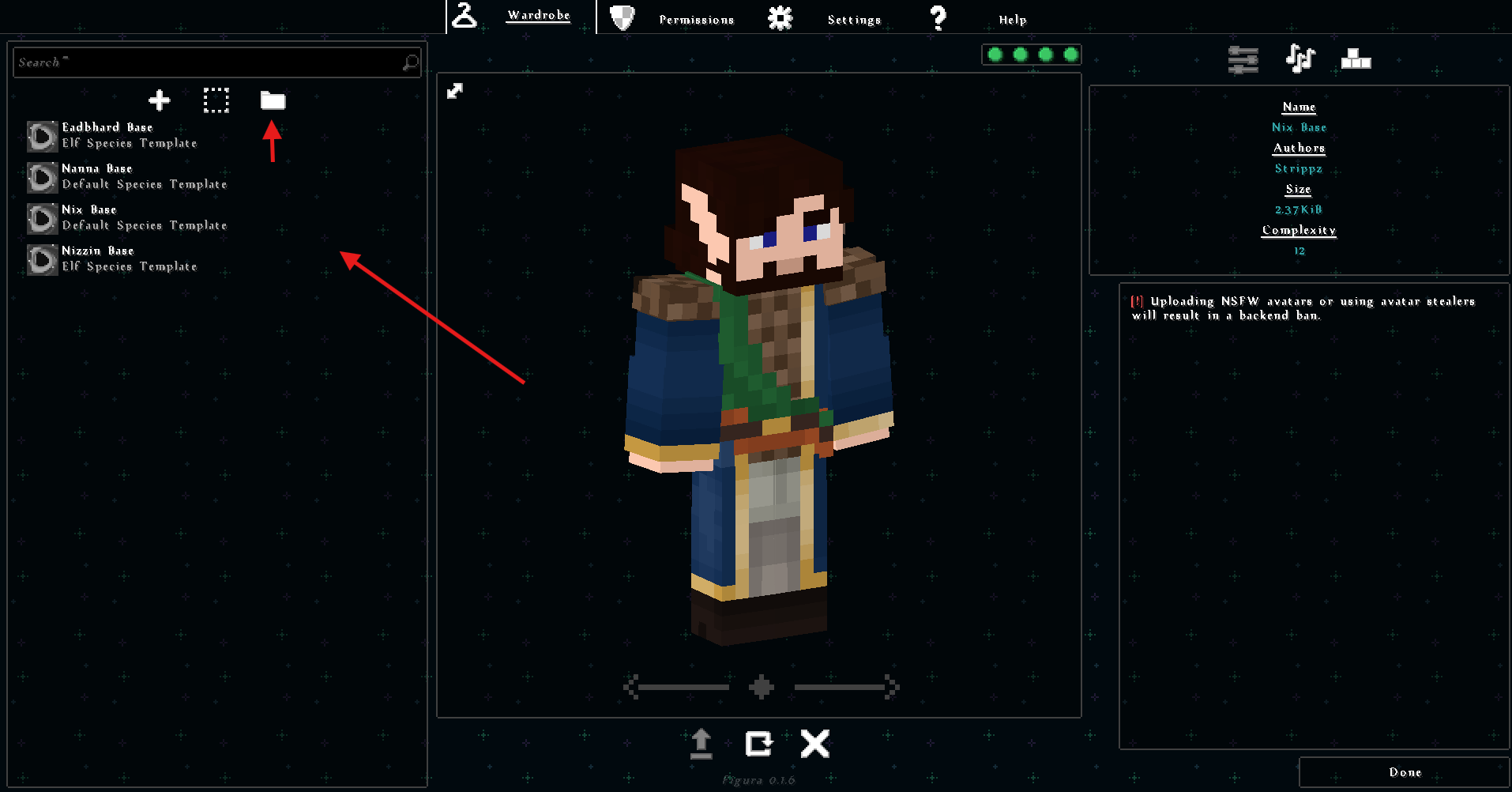
You can drag your Figura folder into either location (either directly in game, or open the avatar folder to drop your template/model folder into). Once your folder is uploaded, select it in the list. We would suggest renaming your Template folder to your character’s name.
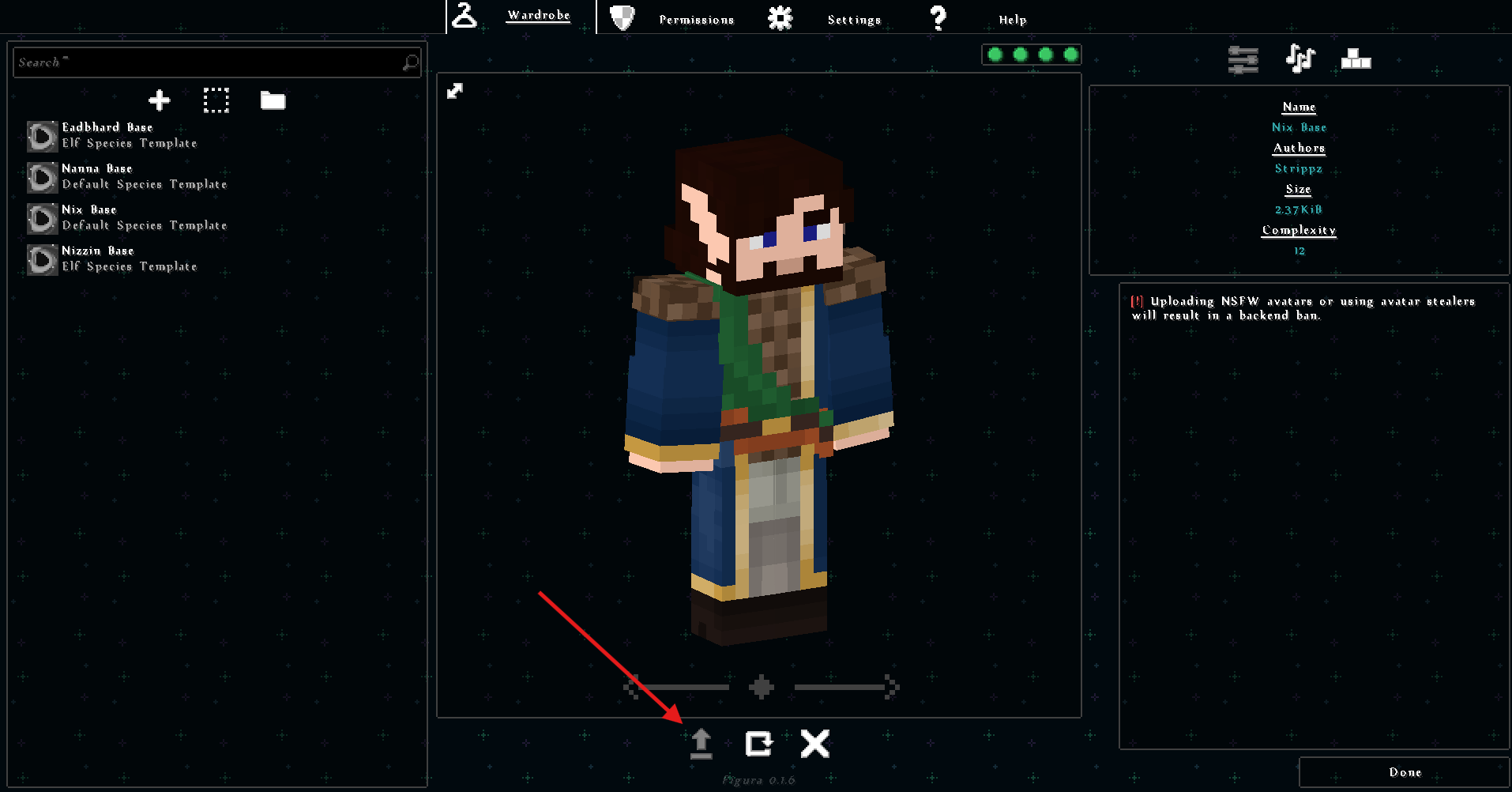
Once you select your model, click on the ‘Upload Avatar to the Cloud’ button. Then, press ‘Reload Avatar from the Cloud’. This will ensure other players will see your avatar and it updates from Figura’s cloud servers. From this point you should be able to use the !setheight command that the custom model utilizes to set your character to their appropriate height. You will need to reupload the avatar to the cloud whenever you add new parts to the model. So if you remove an arm, or add in extra bits that the templates will be able to utilize, etc. Height change won’t need a reupload.
Posted : 13/11/2026 8:30 am